
Sketchbook



Overview
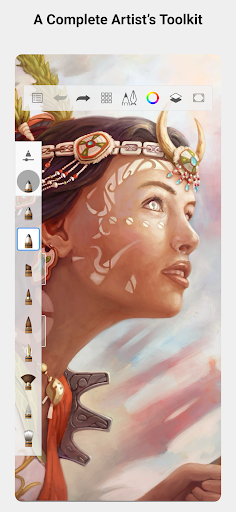
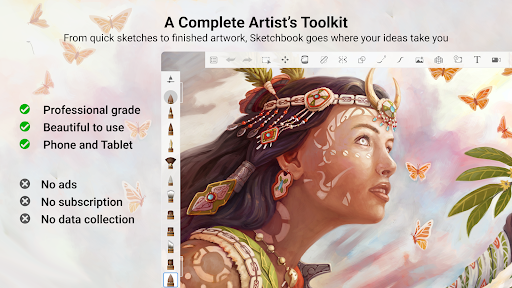
For digital artists and casual doodlers alike, finding the right mobile canvas can be a challenge. This review takes a close look at Sketchbook, a long-standing contender in the Android art application space, developed by its namesake. With over 100 million downloads, it aims to deliver a natural drawing experience directly to your device, mimicking the feel of traditional media. Whether you're sketching out a quick idea during your commute or embarking on a more detailed illustration, Sketchbook promises a suite of professional-grade tools within an intuitive interface. We'll explore its core features, assess its strengths and weaknesses, and guide you through its initial setup, helping you decide if this app belongs in your creative toolkit.
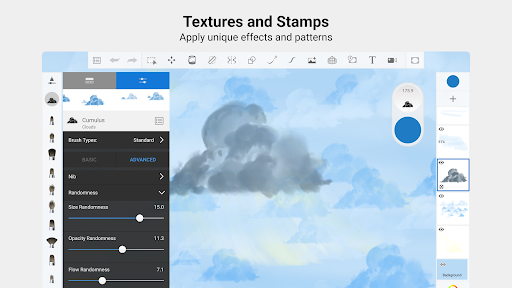
Key Features
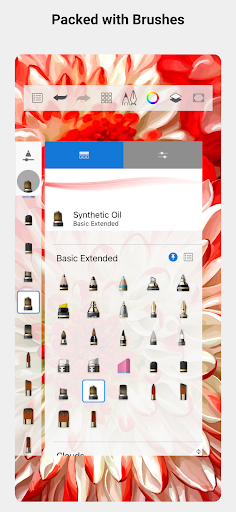
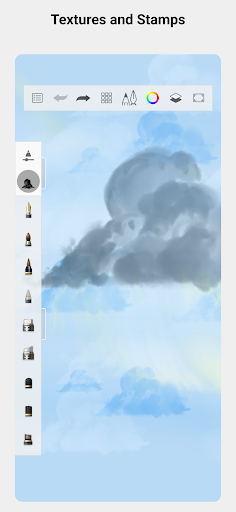
- Extensive brush library with pencils, markers, and airbrushes, replicating real-world art tools.
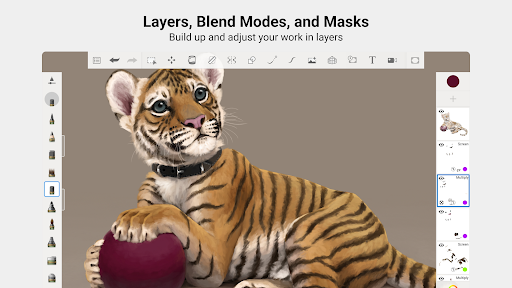
- Comprehensive layer support, including blending modes, grouping, and masking for complex compositions.
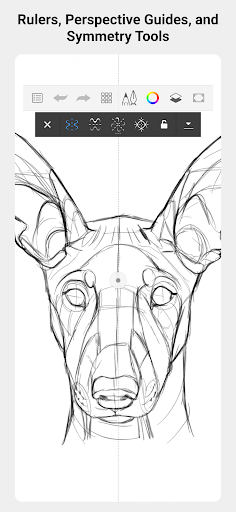
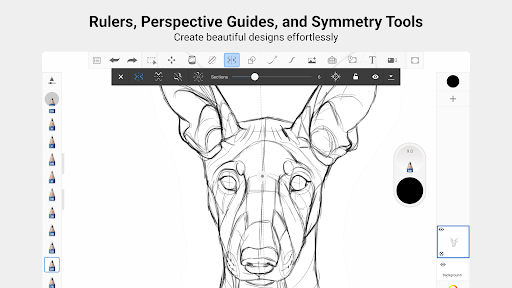
- Precision tools like rulers, guides, and predictive stroke technology ensure accurate lines.
- Symmetry drawing capabilities enable the creation of intricate, mirrored designs effortlessly.
- Cloud integration allows seamless cross-platform synchronization of artwork across multiple devices.
- Compatibility with PSD and other common file formats facilitates easy collaboration and export.
Pros & Cons
Pros
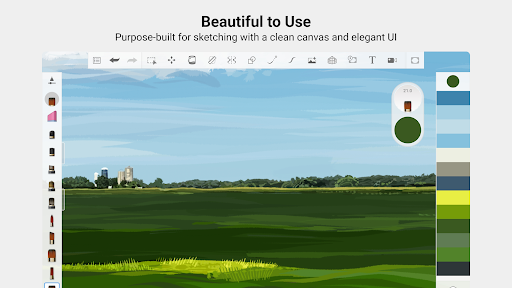
- Highly intuitive and uncluttered user interface helps maintain focus on the artwork.
- Offers a vast array of customizable brushes that feel responsive and natural to use.
- Robust layer management system supports complex projects with ease and flexibility.
- Many professional features are available in the free version, making it accessible.
- Excellent for both quick conceptual sketches and more refined, detailed illustrations.
Cons
- Certain advanced functionalities are locked behind a premium subscription paywall.
- Users with older Android devices may experience occasional performance slowdowns.
- While intuitive, mastering all advanced features might require a dedicated learning period.
- Requires an account for cloud synchronization, which might not appeal to all users.
How to Use Sketchbook
- Install Sketchbook directly from the Google Play Store onto your Android device.
- Launch the application and review any introductory tutorials to familiarize yourself with the interface.
- Create a new canvas by tapping the plus icon, choosing your desired dimensions or template.
- Select a drawing tool from the brush library located in the toolbar at the top of the screen.
- Begin sketching or painting on the canvas using your finger or a stylus.
- Experiment with layers by adding new ones and adjusting their blending modes or opacity.
- Save your artwork locally or to the cloud by accessing the menu options.
Frequently Asked Questions
Is Sketchbook a free application?
Can I use Sketchbook without an internet connection?
Do I need to create an account to use Sketchbook?
Is Sketchbook suitable for beginners in digital art?
What file formats does Sketchbook support?
Similar to This App


Hot Apps