
Move to iOS
Category
Tools
Downloads
100M+
Developer
Apple
Available on
Android, iOS
OS
6.0

Overview
Making the jump from an Android device to an iPhone or iPad can feel like a daunting task, especially when considering the migration of all your personal data. Move to iOS, developed by Apple itself, aims to simplify this transition, acting as a dedicated bridge for your digital life. This tool is designed to ensure that contacts, messages, photos, and other essential information make the journey safely and efficiently to your new Apple hardware. It's a utility built for a very specific purpose: to smooth over one of the biggest hurdles for new iOS users. Our review will explore its capabilities, ease of use, and any potential limitations to help you decide if it's the right solution for your platform switch.
Key Features
- Effortlessly transfers contacts, message history, photos, videos, and web bookmarks.
- Migrates email accounts and calendar entries to your new Apple device.
- Establishes a secure, direct Wi-Fi connection between devices for transfer.
- Ensures data privacy and encryption throughout the entire migration process.
- Includes support for transferring voice memos to iOS Voice Memos or Files.
- Provides clear, step-by-step instructions for a user-friendly experience.
Pros & Cons
Pros
- Directly supported by Apple for official data migration.
- Eliminates the need for cloud services or physical cables.
- Covers a broad range of essential personal data types.
- Designed for straightforward use, even for novices.
Cons
- Only useful for a specific, one-time platform switch.
- Transfers can be slow or unstable for very large files.
- Cannot transfer DRM-protected content or third-party app data.
- Some users report occasional connectivity issues during setup.
- The average rating suggests potential for user frustration.
How to Use Move to iOS
- Install the Move to iOS app on your Android phone from the Google Play Store.
- Set up your new iPhone or iPad until you reach the "Apps & Data" screen.
- Select "Move Data from Android" on your iOS device to initiate the process.
- Open the Move to iOS app on your Android device and tap "Continue" through the prompts.
- Enter the displayed code from your iOS device into the Android app to establish a secure connection.
- Choose the data types you wish to transfer and initiate the migration.
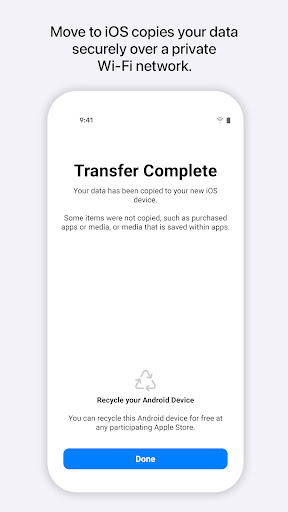
- Wait for the transfer to complete on both devices before continuing with the iOS setup.
Frequently Asked Questions
Is Move to iOS free to use?
Yes, the app is completely free to download and use from the Google Play Store. There are no in-app purchases or subscription fees associated with its data transfer functionality.
Does it require an internet connection for data transfer?
While the app uses a direct Wi-Fi connection between devices, a stable internet connection may be beneficial for initial app download. The actual data transfer itself occurs over a local, secure Wi-Fi network, not requiring an active internet connection.
What kind of data can I transfer using this app?
You can migrate contacts, message history, camera photos and videos, web bookmarks, mail accounts, and calendars. It also supports transferring voice memos to your new iOS device.
Is my data secure during the transfer process?
Yes, Apple states that all data transferred using the app is encrypted. This ensures that your personal information remains private and protected throughout the migration process.
Can I transfer apps or app data with Move to iOS?
No, the app does not transfer third-party applications or their associated data. You will need to re-download apps from the App Store and set them up separately on your new iPhone or iPad.
Similar to This App
Hot Apps

QR & Barcode Scanner
Tools

Open Browser - Smart & Safe
Tools

Clean Sweep Plus
Tools

Clean Fix Plus
Tools

Phone Clean Fix
Tools

Cleanup: Phone Storage Cleaner
Tools

PDF Reader-PDF Manage
Tools

Google Authenticator
Tools

QR Code & Barcode Scanner
Tools

Duolingo: Language Lessons
Education