
Google Authenticator


Overview
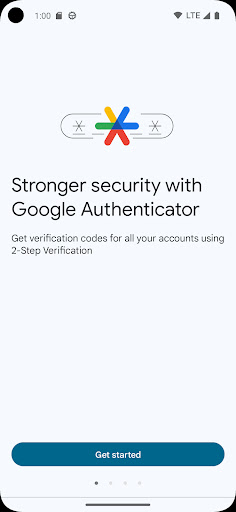
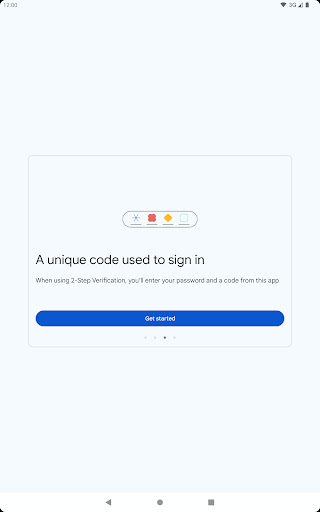
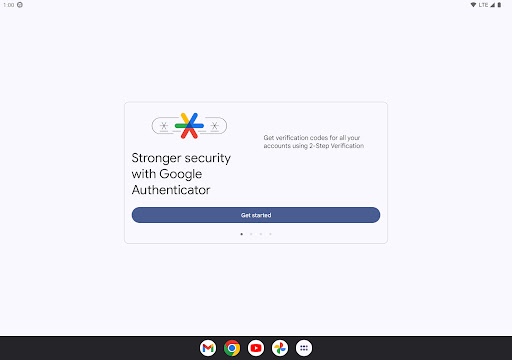
Protecting your digital identity has become a non-negotiable step in maintaining online security. Two-factor authentication (2FA) adds a crucial layer of defense beyond just a password, making it significantly harder for unauthorized individuals to access your accounts. Google Authenticator offers a straightforward and robust solution for generating these essential, time-sensitive codes. This app is designed for anyone looking to bolster their security across various online services, from email and social media to banking and cloud storage. It provides a reliable, offline method to confirm your identity, reducing reliance on potentially vulnerable SMS codes. This review will delve into its key features, highlight its advantages and disadvantages, and guide you through its setup and common user questions.
Key Features
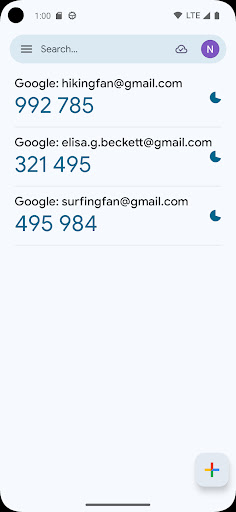
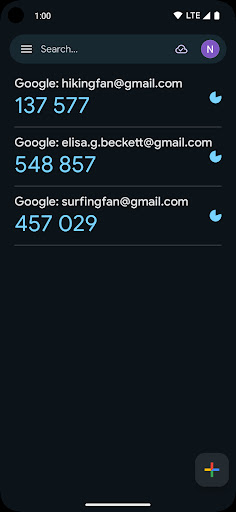
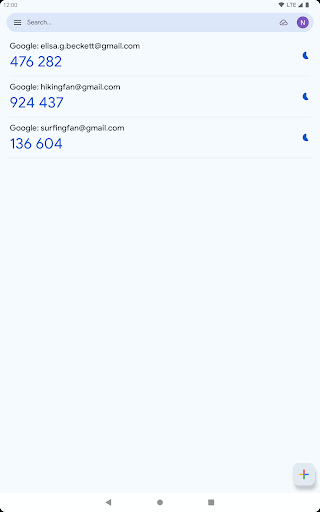
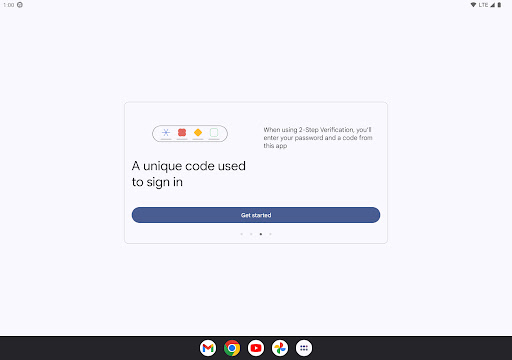
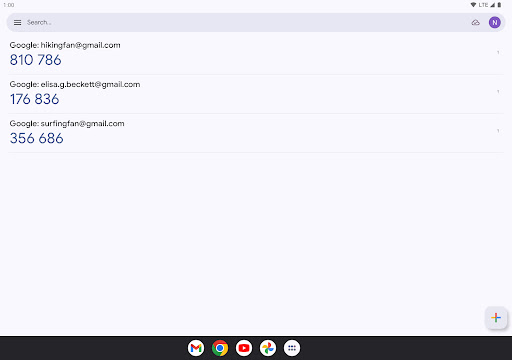
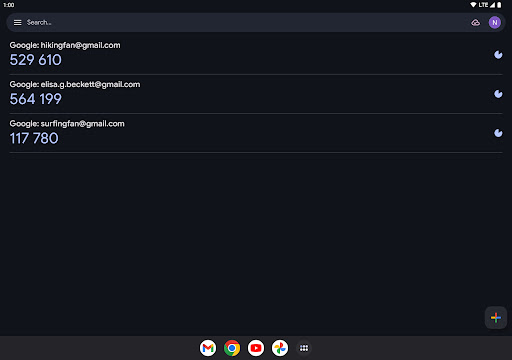
- Generates time-sensitive, six-digit verification codes for enhanced account security.
- Operates fully offline, ensuring access to codes without an internet connection.
- Supports management of multiple two-factor authentication accounts from various services.
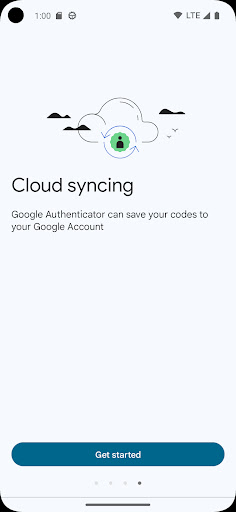
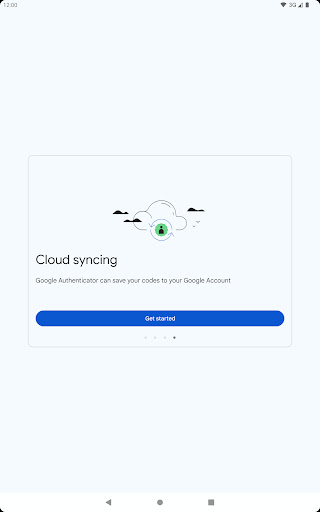
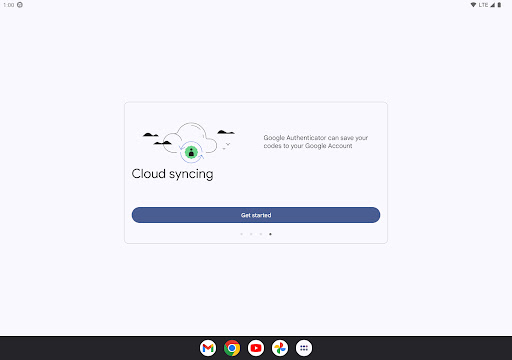
- Offers cloud backup for seamless syncing of authentication codes across your devices.
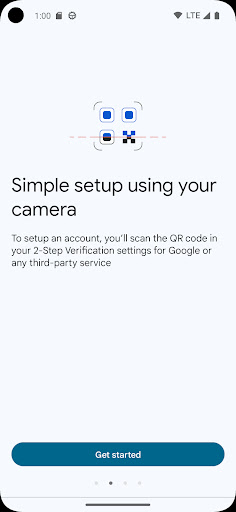
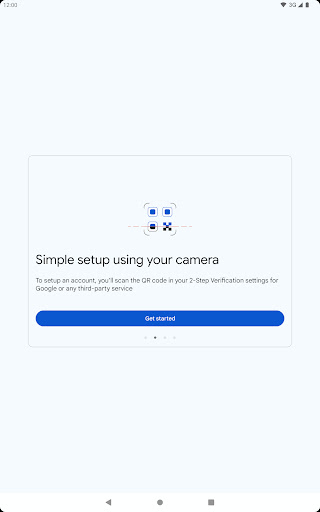
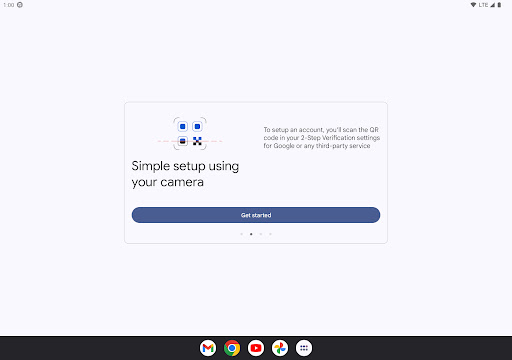
- Quickly adds new accounts using convenient QR code scans or manual key entry.
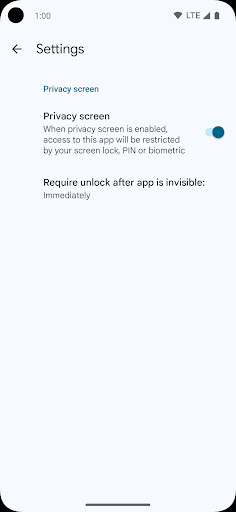
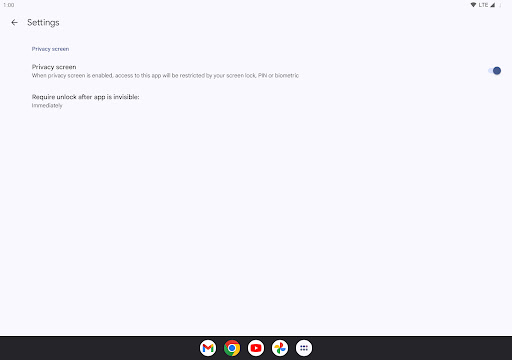
- Prioritizes user privacy by not requiring personal identifying information like phone numbers.
Pros & Cons
Pros
- Significantly strengthens online account security against unauthorized access attempts.
- Reliable functionality even when your device lacks internet or cellular service.
- Manages authentication for a diverse array of online platforms in one centralized place.
- Modern cloud backup feature prevents loss of access to your accounts after device changes.
Cons
- Requires careful backup management; losing your device without backup can lock you out.
- Historical lack of automatic cloud syncing in older versions caused significant user frustration.
- Average rating of 3.83 suggests some users encounter issues or limitations.
- Relies solely on a Google account for cloud backup, which might not suit all users.
How to Use Google Authenticator
- Install the Google Authenticator app from the Google Play Store on your Android device.
- Open the app and tap the plus (+) icon, usually located in the bottom right corner, to add your first account.
- Choose to either "Scan a QR code" or "Enter a setup key" based on the 2FA setup instructions provided by the online service you're securing.
- Scan the QR code displayed on your computer screen or manually type the provided secret key into the app.
- Verify the newly added account is generating codes correctly within the Authenticator app.
- When logging into that service, enter the current 6-digit code from the app when prompted for two-factor verification.


